
How to Interact with Contacts from the Appointments Tab
Managing appointments often requires quick access to contact information and conversation history. Whether you need to review a contact's details before a meeting or check previous interactions, you can access this information directly from the Appointments tab without leaving your current workspace.
Accessing Contacts from the Appointments Tab
To view a contact's information, navigate to Calendars > Appointment List View and locate the appointment associated with the contact you want to review.
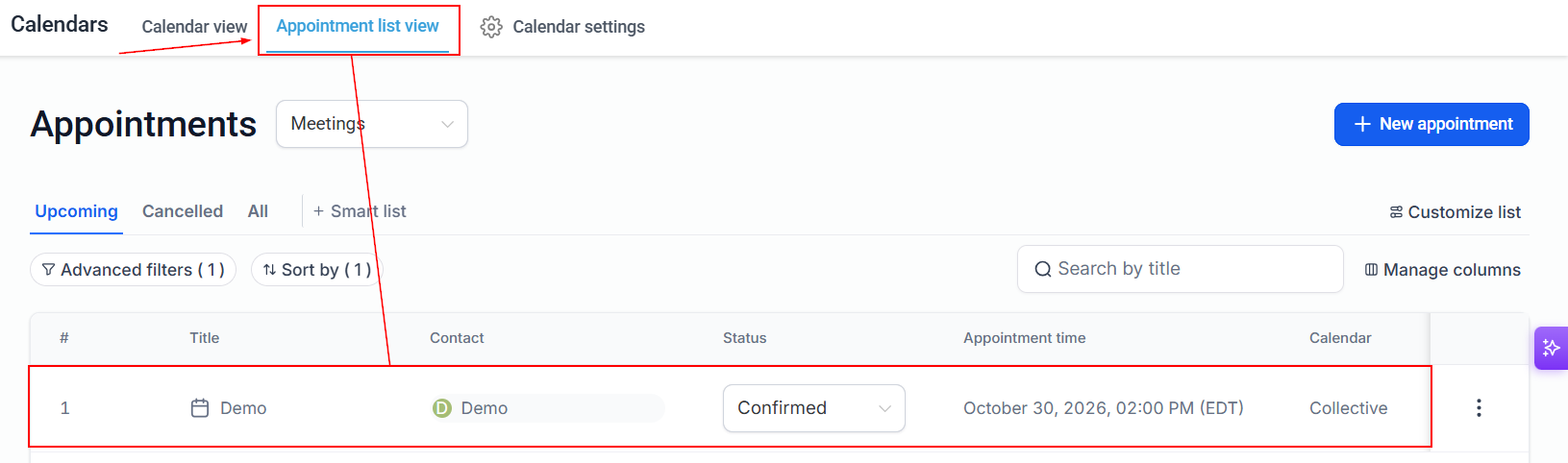
Click the contact's name or contact icon associated with the appointment. The Contact Overlay will open directly on the current page, allowing you to review the contact's information without navigating from your appointment list.
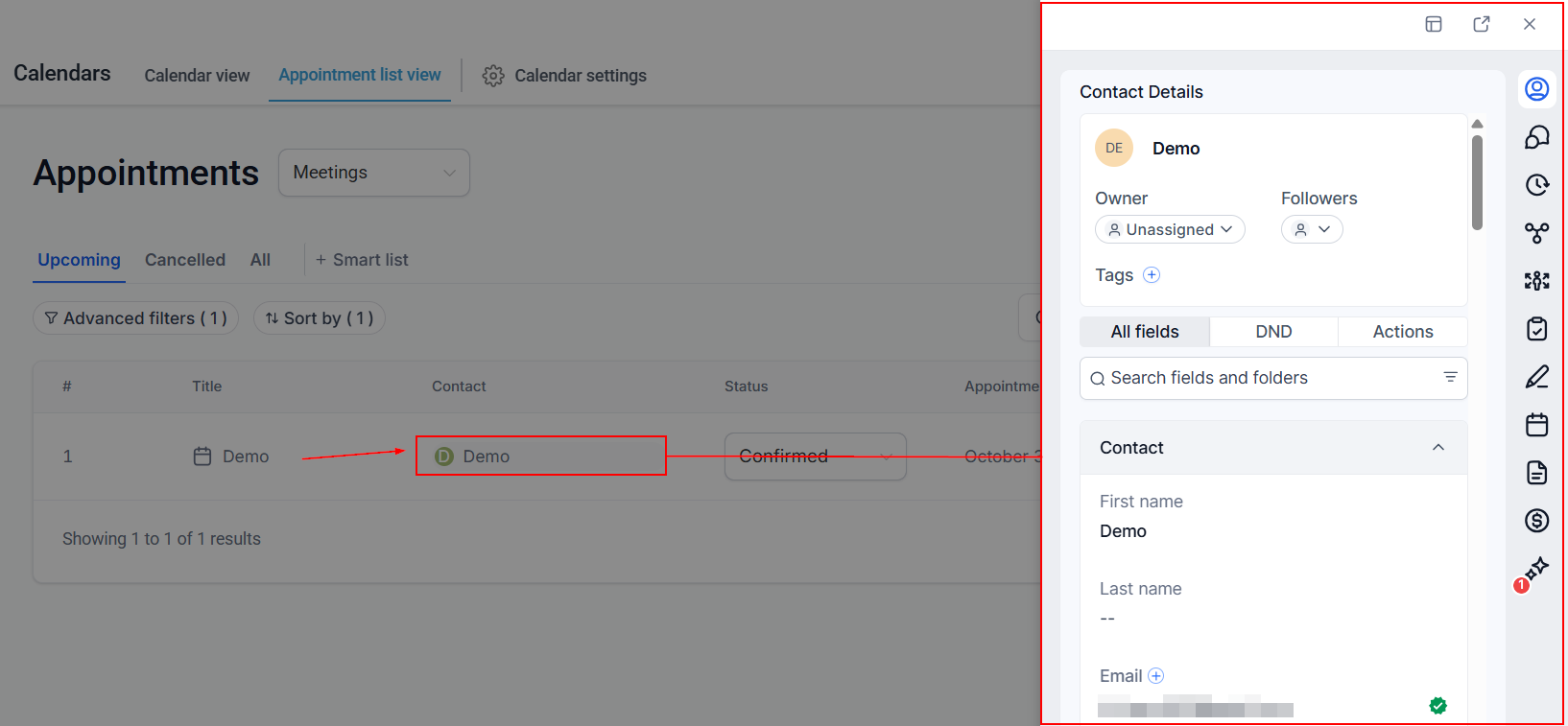
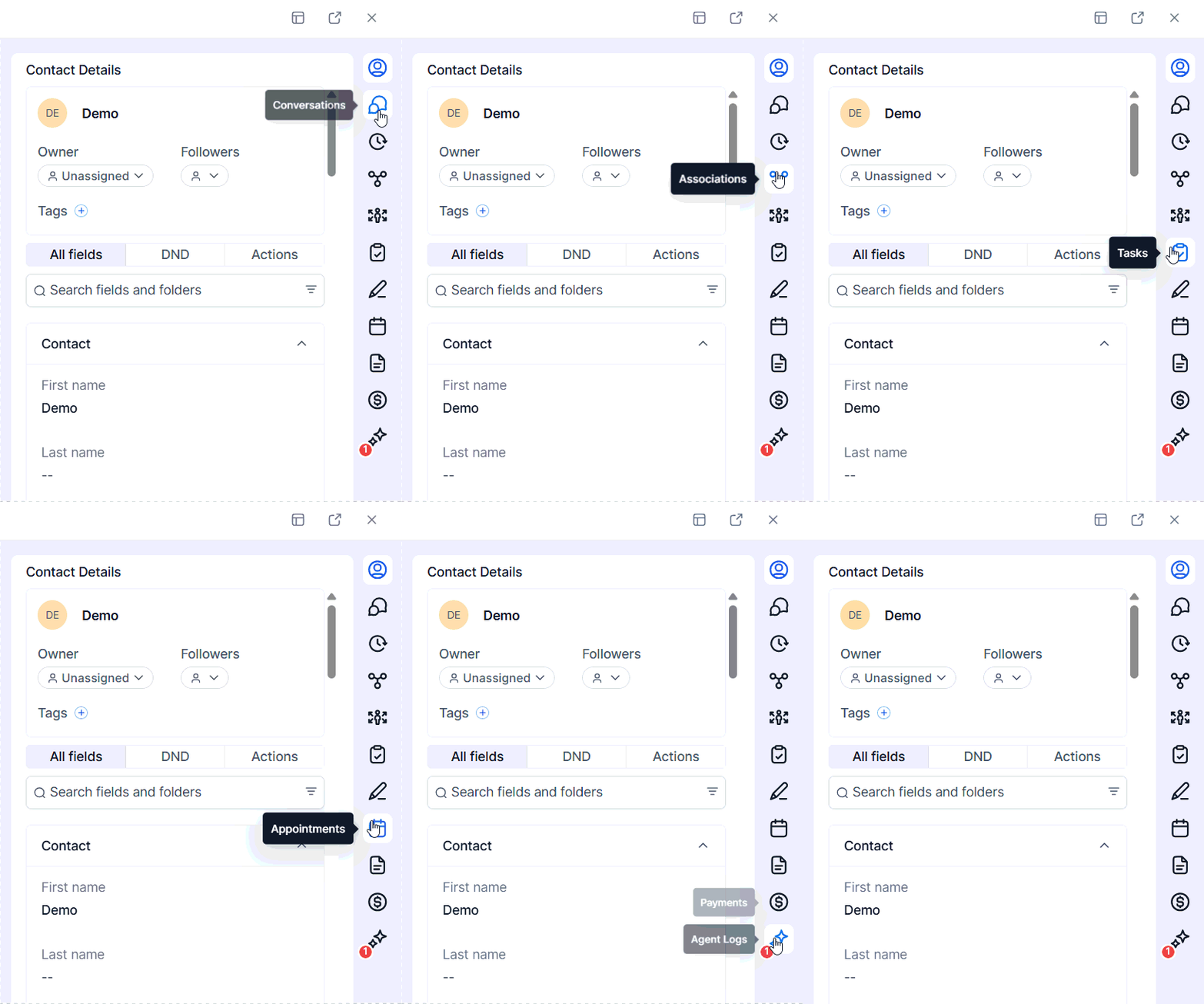
From the overlay, you can review available contact details, access conversations, and view other available information.
Choosing Your Preferred Contact View
The Contact Overlay offers different viewing options to help you access information in a way that suits you. You can switch between these options using the layout control at the top of the overlay.
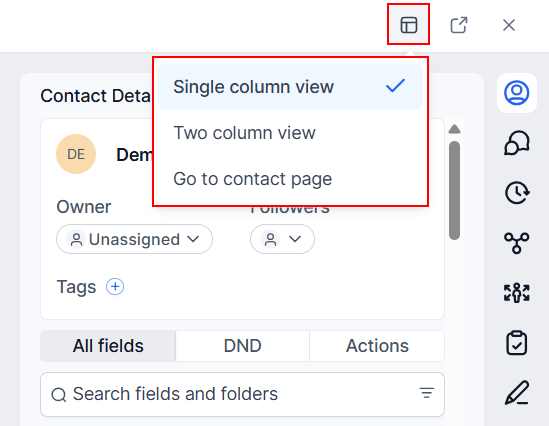
- Single-Column View: The Single-Column View provides a compact layout for reviewing contact details alongside conversations and other available features in the side panel. It is useful when you need to check information quickly while keeping your workspace organized.
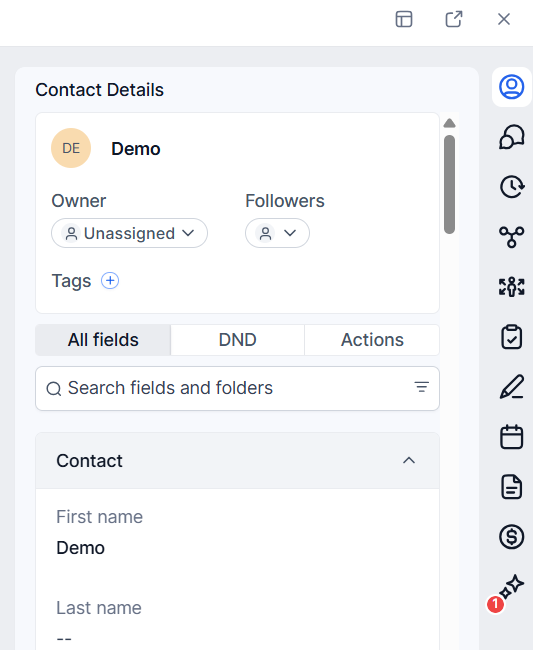
- Two-Column View: The Two-Column View provides a more expanded layout, displaying contact details alongside an extended Conversations area. This option is helpful when you need to review a contact's information and conversation history at the same time, without navigating away from your appointments.
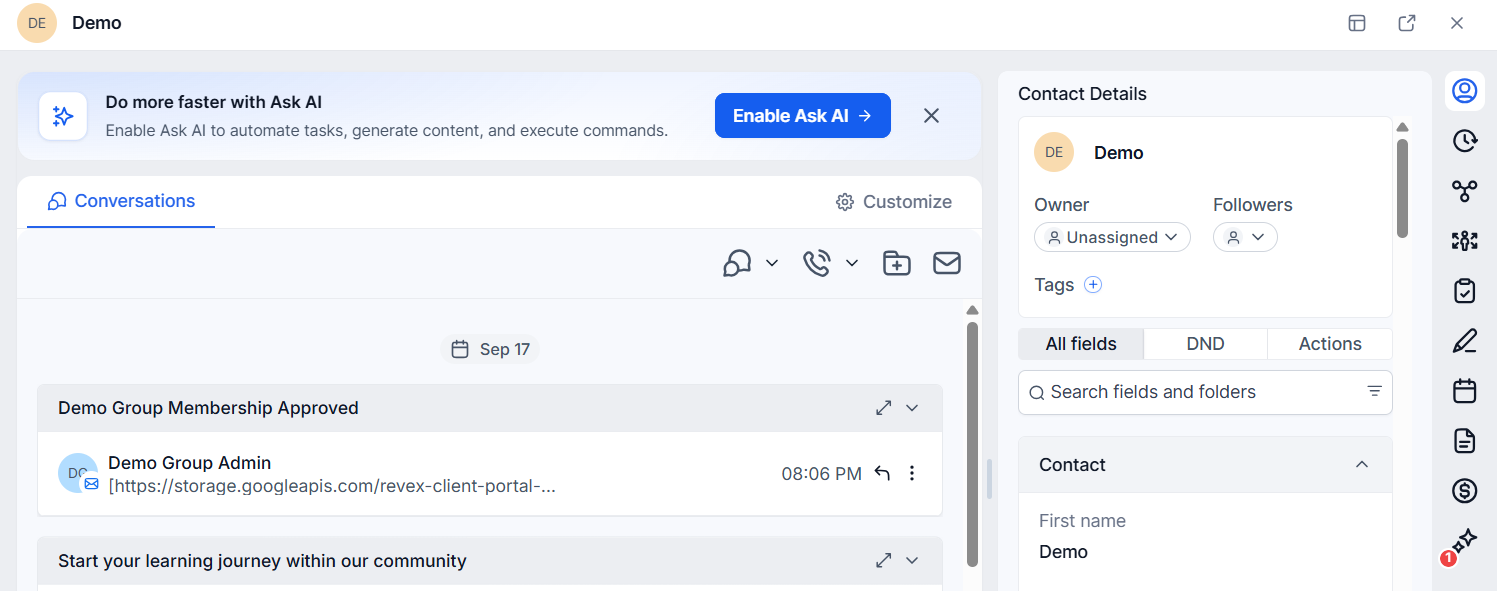
You can switch between these views whenever needed, depending on the amount of information you want to see.
Opening the Full Contact Record
If you need to access the complete contact record, you can open the full Contact Details page directly from the overlay by selecting the Open Contact in New Tab icon to open the contact record in a separate tab.
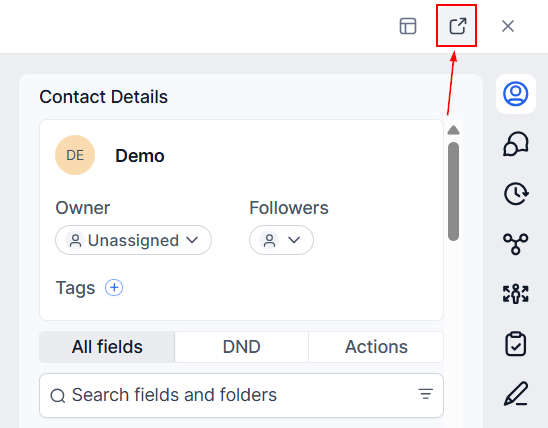
If you navigate to the full Contact Details page from the overlay, you can return to the page you were previously working on. The Contact Overlay also respects your existing Contact Details page customizations, helping maintain a consistent experience between the overlay and the full contact record.
Closing the Contact Overlay
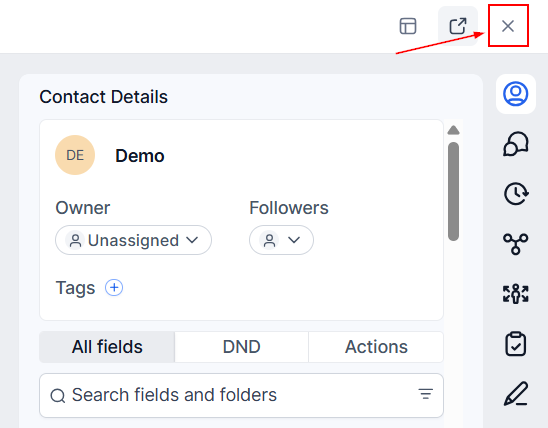
After reviewing the contact's details or conversations, click the X in the overlay to close it. You will return to the Appointments tab, where you can continue reviewing scheduled appointments or move on to another task.
Whether you need a quick overview of a contact or a more detailed look at their conversations, you can access the information you need while keeping your appointment management workflow in context.