
How to Generate a Local Marketing Audit
Your online presence is composed of many pieces you want to keep updated and popular, which can get tricky as you go about business, especially if you don't know what needs sprucing up. With Local Marketing Audits, that is not a problem.
Why Should I Use This Tool?
These comprehensive reports help you find your marketing weak points and develop effective strategies by monitoring your online presence and comparing it to others in the same niche. Sounds helpful? Follow these steps to generate one.
📌Note: You need a connected Google Business Profile to generate a Local Marketing Audit.
Generating A Report
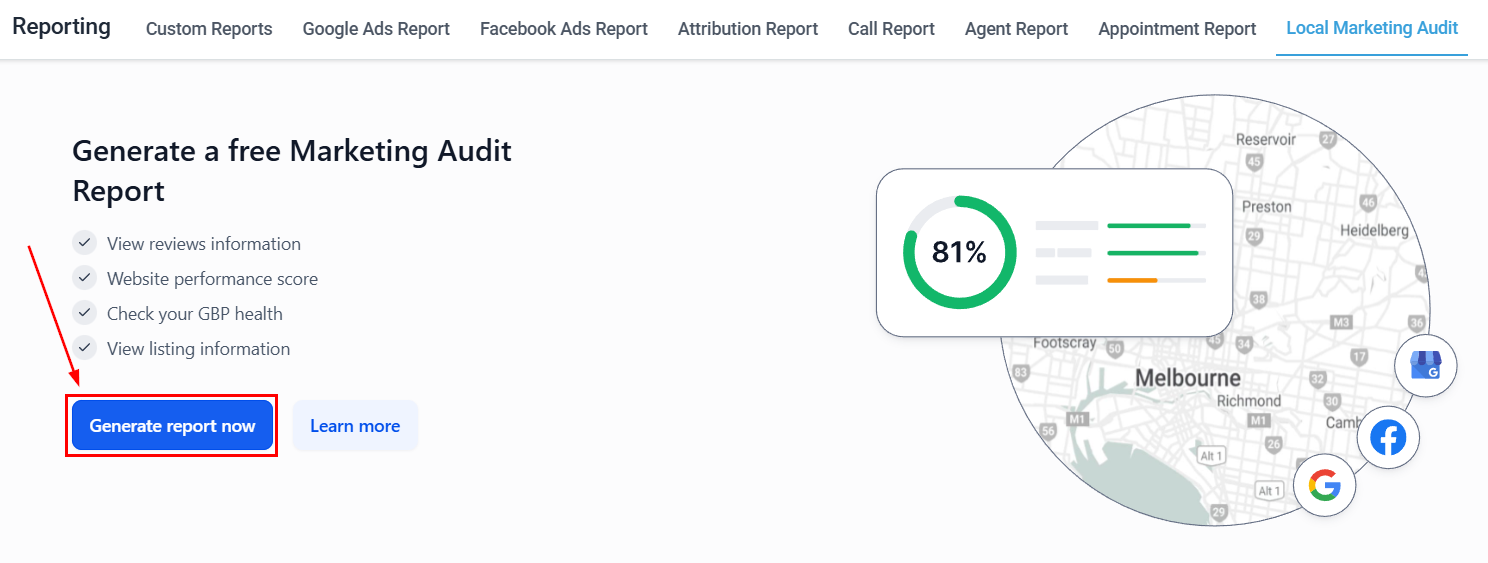
Navigate to the Local Marketing Audit tab inside the Reporting section and click Generate Report Now.
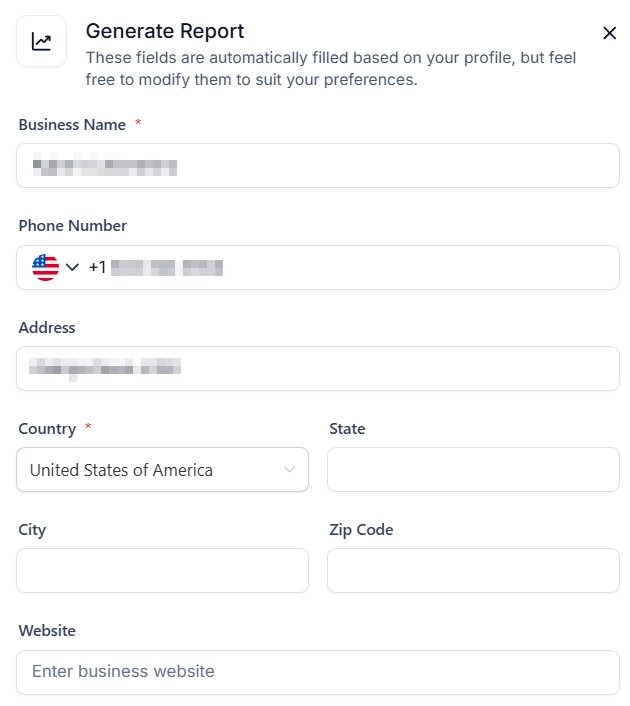
Enter your business name and any other details you want to modify from your business profile.
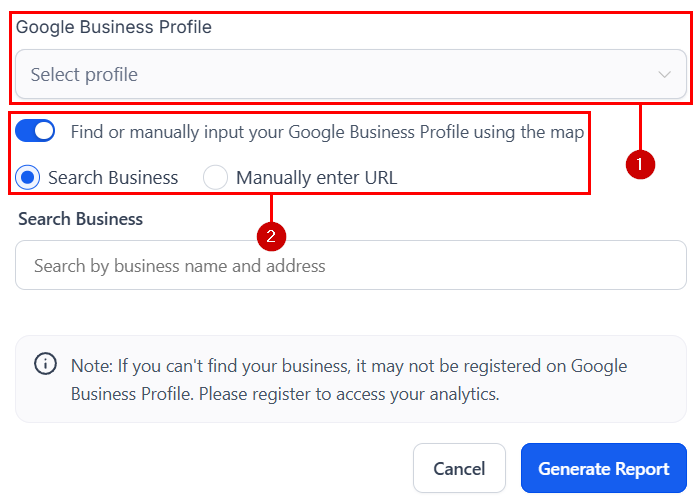
Select your connected Google Business Profile (1) or toggle the option to manually search (2) for the business profile either by name and address or URL.
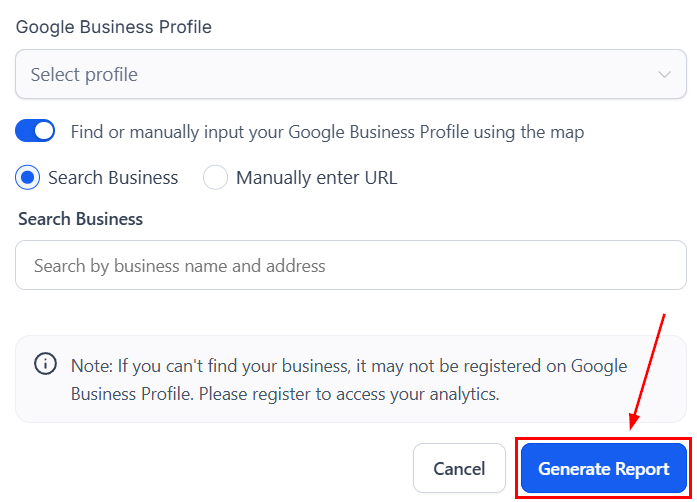
Once ready, click Generate Report.
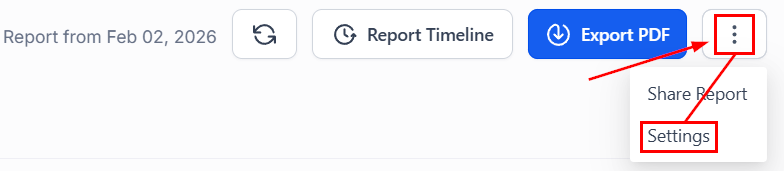
Click the three-dot icon and select Settings.
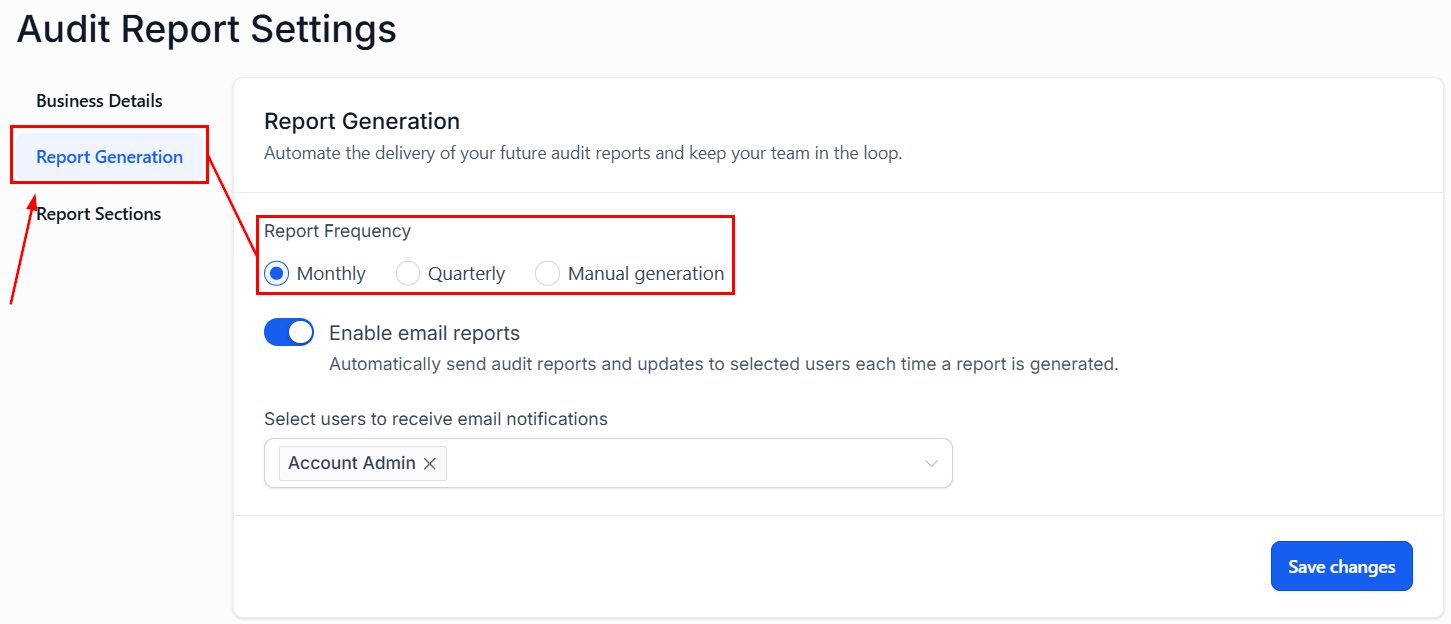
Select “Report Generation” and set the frequency for generating the reports.
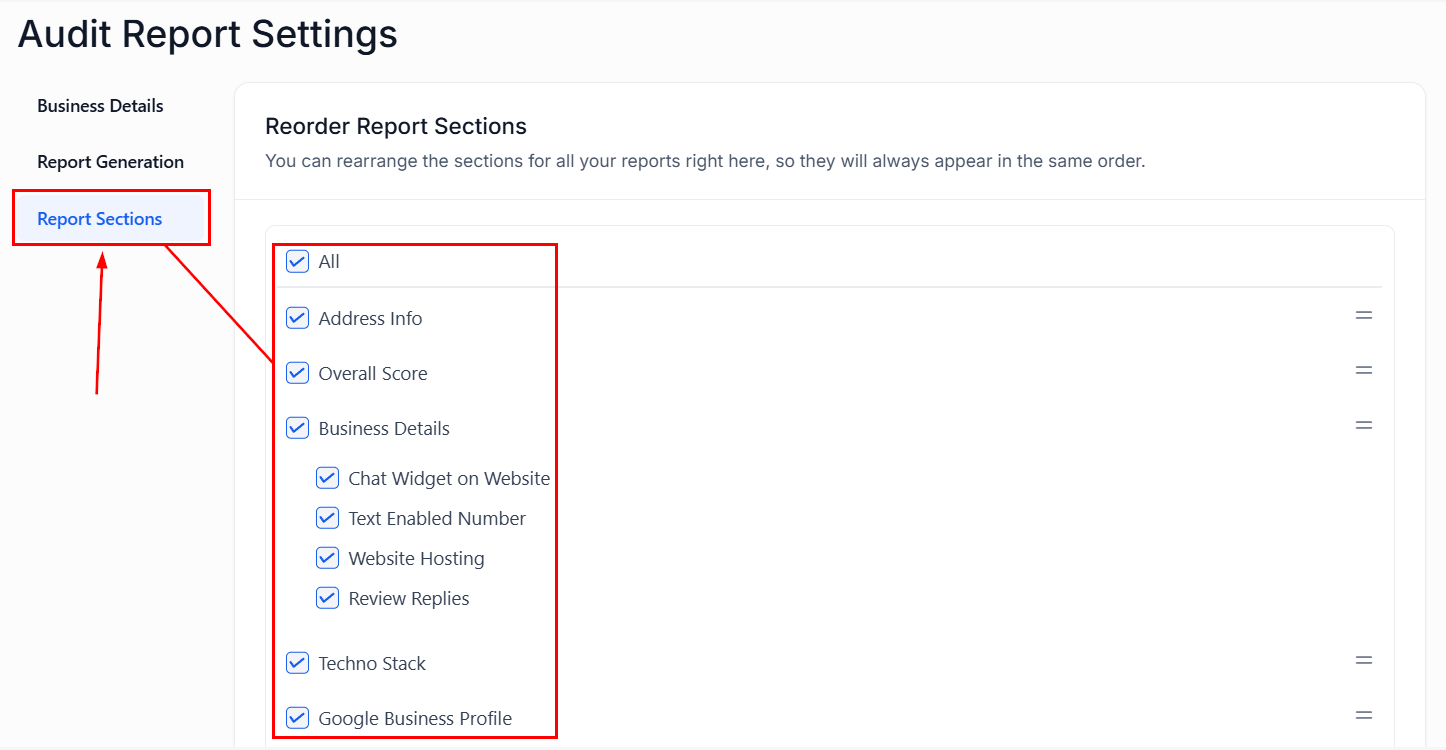
Switch to the “Report Sections” to select and reorder the sections your report will contain.
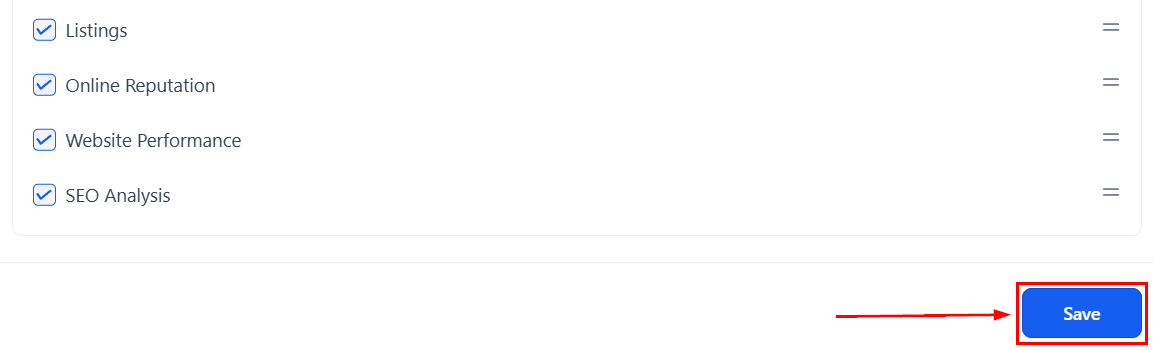
Make sure to click Save at the bottom once you're satisfied with your changes.
Use the section menu to navigate through categories.
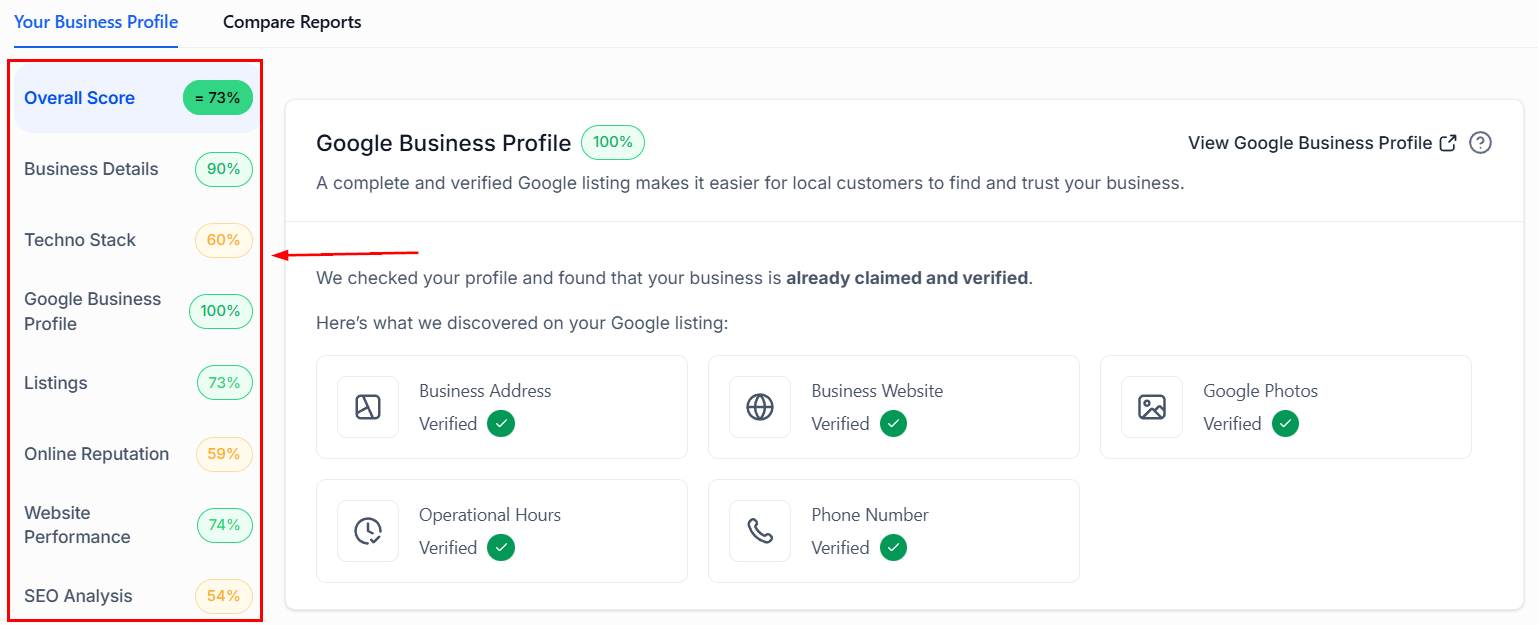
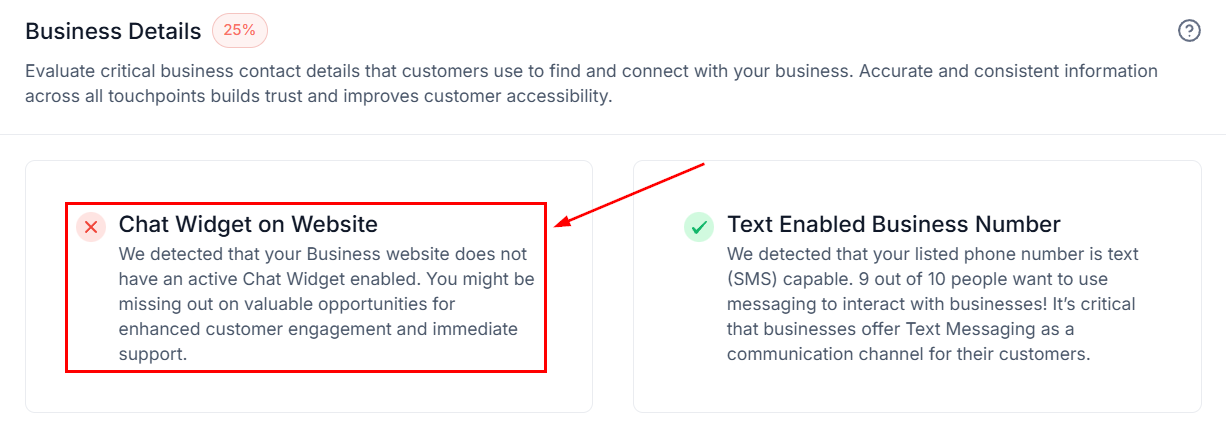
In each section, you'll find actionable steps to improve your online reputation.
Click “Export PDF” to download the report.

Once the selected time passes, you'll receive an email notifying you that a new report was generated. Keeping the information updated and collecting comparison points from previous reports so you can easily showcase and measure improvement.