
3D Secure (3DS) Card Authentication
3D Secure (3DS) Card Authentication
If you've ever bought something online and were asked to enter a passcode sent to your phone or approve a notification in your banking app, you've used 3D Secure (3DS). This guide explains what 3DS is, how it works, and how to fix common issues if your payment gets stuck.
What is 3D Secure (3DS)?
3D Secure (often called 3DS) is a free security feature built into your debit and credit cards to safeguard your money when shopping online. Think of it like showing your photo ID to a cashier at a store, but designed specifically for the internet.
You might recognize 3DS by brand names from major card providers:
- Visa Secure (formerly Verified by Visa)
- Mastercard Identity Check (formerly Mastercard SecureCode)
- American Express SafeKey
- Discover ProtectBuy
How Does 3DS Work?
When you pay for something online, 3DS works in four quick steps behind the scenes:
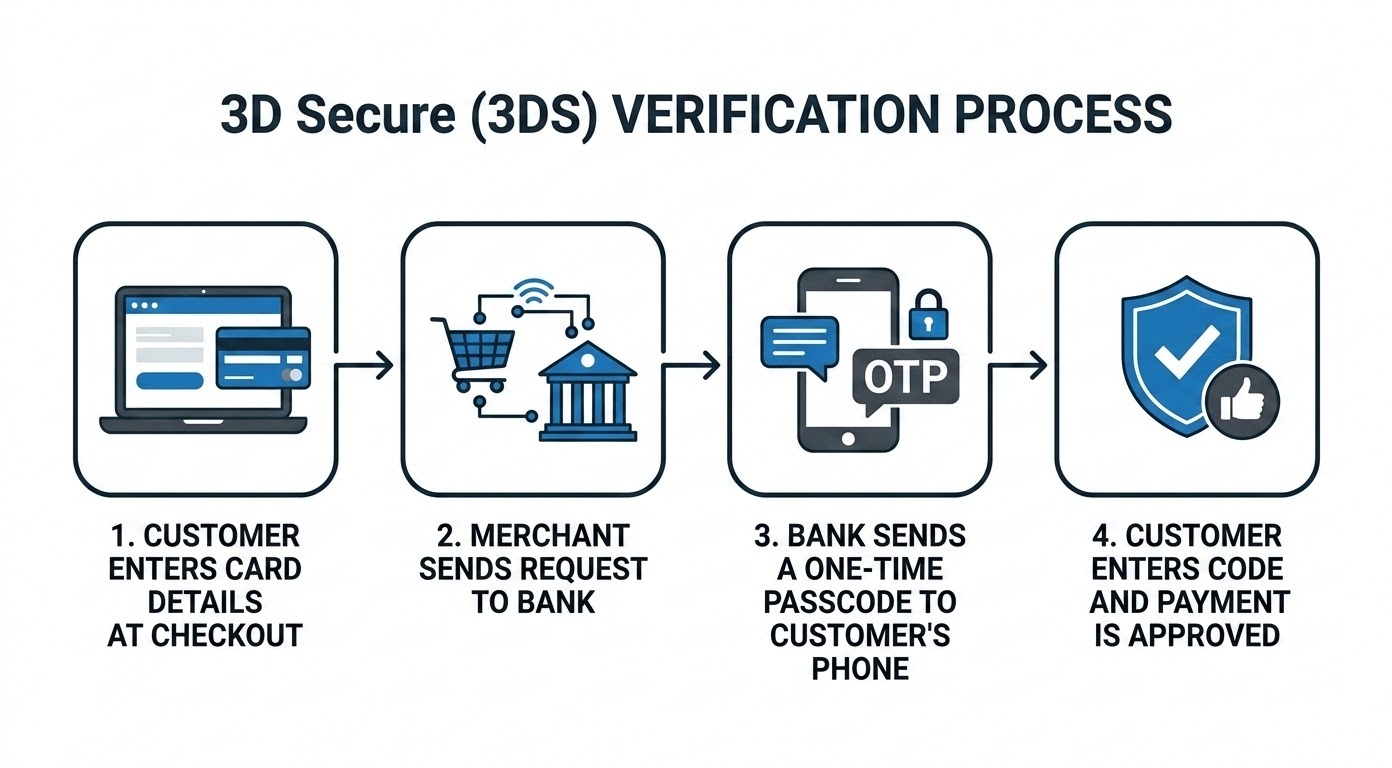
- Enter Card Info: You enter your card number, expiration date, and security code (CVV) at checkout.
- Bank Trigger: The online store automatically sends a security check request to your bank.
- Identity Check: A window appears on your screen asking you to verify your identity. Usually, your bank sends a one-time passcode (OTP) via text message (SMS) or asks you to open your bank's mobile app to tap "Approve."
- Order Approval: Once you enter the correct code or approve the prompt in your app, your bank confirms your identity and processes the payment safely.
Common Reasons Why 3DS Fails
Sometimes, the 3DS verification step fails or stalls during checkout. Here are the main reasons why this happens:
Common Problem | Root Cause |
|---|---|
Pop-Up Blocker Active | The browser restricted the bank's security interface. |
Expired or Typos in Code | The passcode timed out or was entered incorrectly. |
Outdated Contact Info | The verification code was sent to a legacy phone number. |
VPN/Ad-Blocker Interference | Privacy tools disrupted the secure authentication handshake. |
Bank Fraud Mitigation | The transaction triggered high-risk flags (e.g., international or large amounts). |
Troubleshooting Checklist
If your 3DS verification gets stuck or fails, work through these simple troubleshooting steps:
- Allow Pop-Ups: Look at your web browser's address bar. If you see a blocked pop-up icon, click it and choose "Always allow pop-ups for this website," then retry.
- Check Mobile Service: Ensure your phone has cellular reception to receive text messages. If the text takes longer than a minute, tap "Resend Code."
- Open Your Banking App: Some banks do not send text codes; instead, they send a push notification to your phone. Open your banking app directly to see if a prompt is waiting for your approval.
- Turn Off VPN & Ad-Blockers: Temporarily pause any VPN software or browser ad-blocking extensions while completing your purchase.
- Try Incognito Mode or Another Browser: Open a private/incognito window or switch browsers (e.g., from Chrome to Safari or Edge) to bypass saved cache or cookie issues.
- Verify Contact Details with Your Bank: Log into your online banking account and make sure your current mobile phone number and email address are up to date.
- Call the Number on the Back of Your Card: If you've tried the steps above and still can't complete the purchase, call your bank's customer service number. A customer support representative can tell you if there is an active security hold on your account or enable 3DS on your card.